Firewalls#
This guide explains how firewall rules work on the myDelska platform and how to create rules for a single virtual machine or apply a firewall policy to multiple VMs at once.
What details are provided in the Firewall section?#
The Firewall section of the Dashboard lists your existing firewall policies (if any) and lets you create new inbound or outbound policies.
What is the difference between a shared and a private firewall?#
A shared firewall hosts many users, while a private firewall is a dedicated service provided to a single user. A shared firewall comes with specific predefined controls; a private firewall offers more customization options and enhanced security.
What are inbound and outbound firewall rules?#
- Inbound rules control incoming traffic on the specified port.
- Outbound rules control outgoing traffic on the specified port.
Traffic that does not match a rule is blocked: assigning a port allows connections on that port and blocks all other traffic in that direction.
Where can I see my firewall rules?#
Firewall rules can be managed in two places:
- Dashboard » Firewall — create rules and reusable policies and apply them to the VMs in your Workspace.
- Dashboard » Instances » your VM » Firewall — view and edit the rules of that specific VM.
You can also see them in the Network Topology overview.
How to set up a firewall for a virtual machine (VM)#
To set up firewall rules for a single VM, follow the steps below:
- Choose the virtual machine in the Dashboard.
- Go to the Firewall section.
- Choose to create Inbound or Outbound rules.
- Click New rule.
- Choose the protocol/service for the rule.
- Set the Action, Protocol, Port, and Source/Destination IP or Network.
The example below shows a firewall rule set that allows HTTP and HTTPS from any source IP (the Internet) — all other network traffic is blocked:
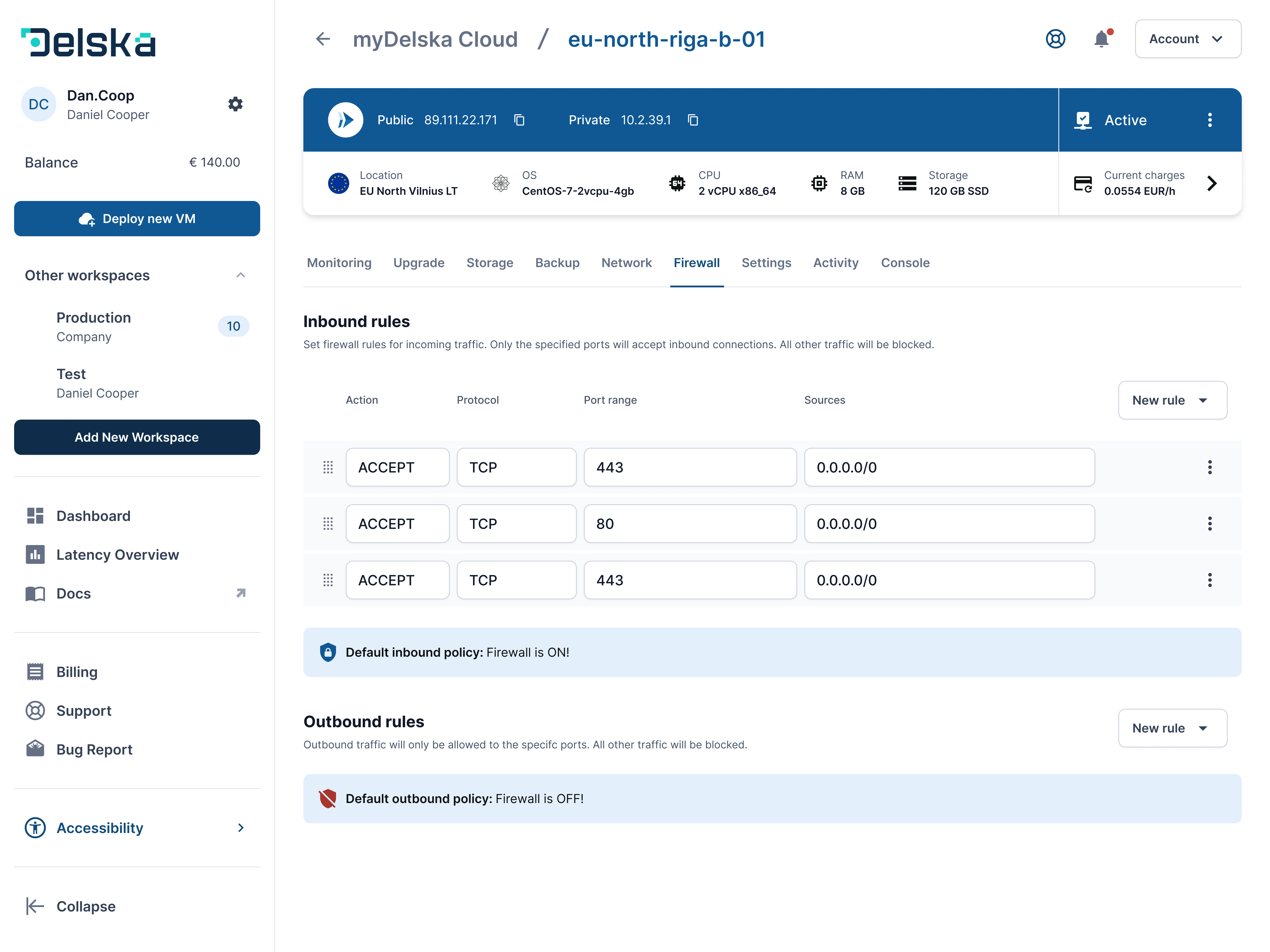
Open the Firewall section in myDelska to configure your rules.
How to create a reusable firewall policy#
As a second option, you can apply firewall rules from a predefined firewall policy:
- In the Dashboard Firewall section, create a New policy.
- Choose an Inbound or Outbound policy.
- Define the firewall rule criteria (Action/Protocol/Port/Source or Destination IP/Network).
- Save the policy.
How to apply a firewall policy to multiple VMs#
- In the Dashboard Firewall section, choose the predefined firewall policy.
- Select the VMs.
- Click Apply.
Please note: The applied policy will overwrite any custom rules the selected VMs may have set!
Next steps#
Open in myDelska Platform#
Open Firewall in myDelska to create rules and policies for the Workspace, or open a VM's Firewall tab directly.